



how to Use your mobile phone as a wireless modem
Did you know you can use a mobile telephone as a wireless modem? If your phone and computer can connect over IrDA or Bluetooth, you're well on your way.
You can connect your Macintosh to the Internet using a GPRS (General Packet Radio Service) mobile telephone as a modem. To do so, you should first make sure that you can:- Connect to the Internet over GPRS using the WAP browser in your telephone
- Connect your Macintosh to your mobile phone over IrDA or Bluetooth.
Once you can do these two things, you can set up your computer to use the telephone as a wireless modem to connect to the Internet.
Important: GPRS data services and Internet access are typically optional offerings. Ask your mobile phone operator about GPRS availability in your area, and what the subscription fees and service charges are.
Using your mobile phone as a wireless modem
Once you have made the appropriate network settings on your Mac, you can use your mobile phone as a wireless modem.
- Ask your mobile phone operator for the network settings necessary to use your GPRS mobile phone as a modem. In some cases, you'll use the same network settings that your phone uses. In others, you may need to get network settings specific for computers. Typically, these settings include:
- GPRS dial-up number
- User ID
- Password
- IP Address
- DNS Address
- other advanced settings such as authentication, data compression, header compression, and quality of service
- From the Apple menu, choose System Preferences.
- From the View menu, choose Network.
- Choose New Location from the Location pop-up menu.
- Type a name for the new location such as "Wireless Modem".
- Choose "Network Port Configurations" from the Show pop-up menu.
- Make sure the "USB Bluetooth Modem Adapter" is enabled. Deselect the ports or interfaces you aren't using in this location, such as "Built-in Ethernet", and "Internal Modem".
- Click Apply Now.
- Choose "USB Bluetooth Modem Adapter" from the Show pop-up menu.
- Click the TCP/IP tab, if necessary. Choose "Using PPP" from the configure pop-up menu, and enter the DNS numbers and search domains as provided by your mobile phone operator.
- Click the PPP tab, and enter the account name, password, and telephone number as provided by your mobile phone operator.
- Click PPP Options. A sheet appears. Click "Use TCP header compression" to disable this option, and click OK. Your operator may be able to tell you if you can leave this option turned on or not.
- Click the Bluetooth Modem tab, and choose a mobile phone model that closely resembles yours from the Modem pop-up menu. In some cases, your mobile phone operator may provide a specific modem script for you to use.
- Click Apply Now.
- From the View menu, choose Bluetooth.
- Click the Settings tab, and select "Show Bluetooth status in the menu bar" to enable that option, if necessary.
- Make your mobile phone "discoverable" to other Bluetooth devices, or turn on Bluetooth communication. See the documentation that came with your phone for instructions.
- Choose "Search for phones" from the Bluetooth menu bar item, and select your phone, which you have already paired.
- Once your phone and Mac are connected, open the Internet Connect application.
- Click connect. Your telephone should connect to your mobile phone operator, and in 10 to 20 seconds, you should be able to use the Internet.
how to Use your mobile phone as a metal detector
Apparently, this Android-based metal detector application really does work! According to readers of Android Guys, it likely uses the G1 handset's built-in compass...or it could be that metal has an effect on the electromagnetic fields around the device and thus causes detectable fluctuations in the signal strength of its GSM radio.
how to customize the se phone by flashing
1. Download XS++ v 3.1!! Backup Your GDFS And Also INSTAL USB FLASH DRIVERS !! Read Here
2. Connecting phone to XS++
Shutdown phone . Reinsert Battery. (don’t start phone)
Then Click on Connect in XS++ and holding C button on your phone connect your phone to Computer to USB cable and don’t leave C button until XS++ detects your phone and requests you to leave C button.
On the Left Side of the XS++ it gives details of your phone. Read it !
EROM CID 52 are must ! or else stop right here !
This is the general way of connecting phone to XS++ every time you connect phone to XS++ this is how you have to connect !
3. Folder Creating Instructions and My Terminology !
If i say upload files to location own_custpack/tpa/preset/system/desktop/flash/
then u must create a folders like this
1. create “own_custpack” folder in the XS++.exe directory.
2. open “own_custpack” folder and create “tpa” folder.
3. open “tpa” folder and create “preset” folder.
4. open “preset” folder and create “system” folder.
5. open “system” folder and create “desktop” folder.
6. open “desktop” folder and create flash folder.
7. open “flash” folder and paste all .swf files you want.
8. then flash using xs++
You can also upload files using FAR MANAGER !! Follow here !!!
4. Using XS++ !
We use XS++ to upload files to phone’s File System
Shutdown phone, in XS++ Click Connect phone, Reinsert battry, holding C connect phone. Then in XS++ Main window Check customize file system option and in select phone model option you must choose own_custpack
Then when you press flash button, XS++ uploads the contents of own_custpack folder to the phone’s file system.
You can also use FSX Method to Upload files to phone FS instead of own_custpack method
——————————————————————————————————————————
5. Flash Menus
Download Flash Menus From My Site Download Area and also Se-nse Download Area
You can also download Flash Menus From Topse Download Area
Working of Flash Menus
Flash Menu have to parts. A Theme file .thm and a Flash File .swf
The flash .swf file must be uploaded to the phone’s file system and then theme .thm file must be copied to the phone’s Memory Card.
Ever Flash Menu must have a matching theme to use with. Or Else we will need to pair a .swf file and a .thm file to use them. Download the guide to couple flash menus.
After downloading flash menu copy the .swf files to flash folder
own_custpack/tpa/preset/system/desktop/flash/*** .swf files her***
and upload using own_custpack
Later Copy .thm files to M2 card !
Remember u must flash only the .swf files !
many 176×220 flash menu Click here
Flash Menu 240×320 ( for w580i w880 etc )
——————————————————————————————————————————
6. Walkman 2 skins ( Click here to check out )
upload skin folder to this location in phone’s FS
own_custpack\TPA\SYSTEM\MULTIMEDIA\MP\SKIN\**skin folder here**
if skins are already placed then just flash
NOTE : Walkman 2 Skins Only for W Series phones ! k790/800/810 use Walkman 1 Skins !!
Again here you must use skins according to phone resolution !!
Download skins from Topse Russia or Se-nse Download Area or From My Website.
——————————————————————————————————————————
7. Flash Wallpapers
Just download and copy them to Memory Card as usual as u copy music to M2 Card
U can set them as wallpapers as u set pictures as wallpapers. And if your phone supports flash wallpapers then you can set them as wallpaper. You can download many from Topse Russia ! ——————————————————————————————————————————
8. Acoustics
Acoustics control the music quality and loudness !
For db2000, db2010 you must use apf acousitcs and for db2020 phone you must use zapf acoustics
here are few zpaf acoustics
w880 acoustics
download w880 originals : very good quality and good treble
http://www.esnips.com/doc/60fc56ef-39a5-4e…F_Acoustic_W880
Xearo Ma lout have quality and loudness and superb mega bass !
xearo ma loud acoustic : loud and awesome megabass
http://www.esnips.com/doc/8501542b-6962-45…3/xaero_ma_loud
people who don’t like loud acoustics try out w880 acoustics ! and i use w880i .. coz i just hate loud music.. i like the low music in the background..!
download acoustics of your choice
upload acoutics to this directory using XS++
own_custpack/ifs/settings/acoustic/**** zapf files here ****
Check here for more acoustics
——————————————————————————————————————————
9. Camera drivers
Using new camera drivers you can improve the picture quality of your picture ! Also these new camera drivers have new features. This is a must check out.
download camera drivers then
own_custpack/ifs/settings/camera/***camera driver file here****
Download Camera Drivers From ESATO ! That’s the place for camera drivers disucssion and research
Camera drivers for k750, w810, k550i,w610,k800,k790,k810 etc are all available at Esato !
——————————————————————————————————————————
10. Visualizations !
Walkman 2 Player Supports Visulizations ! Download Visualization from the below link and flash them in !
Each Visulization will have two files. One AVX file and an Image file.
upload to
.avx files to own_custpack\TPA\PRESET\SYSTEM\multimedia\AV
starting image file in i.e the png or the image to own_custpack\TPA\PRESET\SYSTEM\multimedia\AV_DATA
Visuals Research Thread ! This Thread has many visulization
Visualization for 176×220 and 240×320 phones are both the same.
——————————————————————————————————————————
Information : You must use flash menu according to your phone’s screen resolution
Guide Valid for all db2000 db2010 db2020 with any of the following CID 36,49,52.
Connect your phone to XS++ and it will give the information in the left column and you can verify
All Se Flashing Tools download
Download XS++ , Setool 2 lite and Far Manager from that site our 4shared folder !
http://seflashing.4shared.com
IMPORTANT: From now on you can download many Firmwares for many many phones for free from SeUsers.
You can download lots of Firmware(Main+FS) for free and easily from share2flash.
You can download lots of CDA/Custpack/Customization pack from Se-nse Download Area.
Topse Russia >> Topse Russia Has a Very Good Download Area ! Register and Download Anything you Want ! Softwares, Firmwares , Skins, Flash Menu and More.
XS++ Version 3.1 > Download
FarManager > Download
SeTool 2 Lite 1.11 > Download
Cybershot 4shared Folder >> http://cybershot.4shared.com/
This Folder has quite a lot of stuff >> http://k550.4shared.com/
Depeha’s Blog ! has lots of Cool Stuff !! http://walkmans.wordpress.com/
Lots of Firmwares and Other Downloads at sek750.extra.hu. For all Phones
Register at topse in English using this English link >> http://topse.ru/registration_eng.html
Flash Lite Tutorial ! And Some Cool Flash Menus and Wallpapers Check Out here
Download Clip Art and Frames for your SE camera ! From here !
Sony Ericsson A2 Unlocking software free download
ee A2 unlocking client. It supports all the latest Sony Ericsson A2 and A2 v.2 phones !
Phones Supported !
C510, C702, C901, C902, C903, C905, G905,You can download it from Rapidshare, their official link or from filebase. You have to register at Aerix website to get access to free unlocking, you will need your username and password to login to the client. Using this tool is pretty easy. You should first Install USB Flash Drivers. Then Start Aerix Client and Click Unlock, Then shutdown phone, connect phone holding 2+5 and wait. It should unlock within 2 minutes !
G705, K630, K660, K850, K858, T700, TM506,
V640, W595, W705, W715, W760, W890, W902,
W908, W910, W980, Z750, Z770, Z780
Here is a screen shot of Aerix tool.
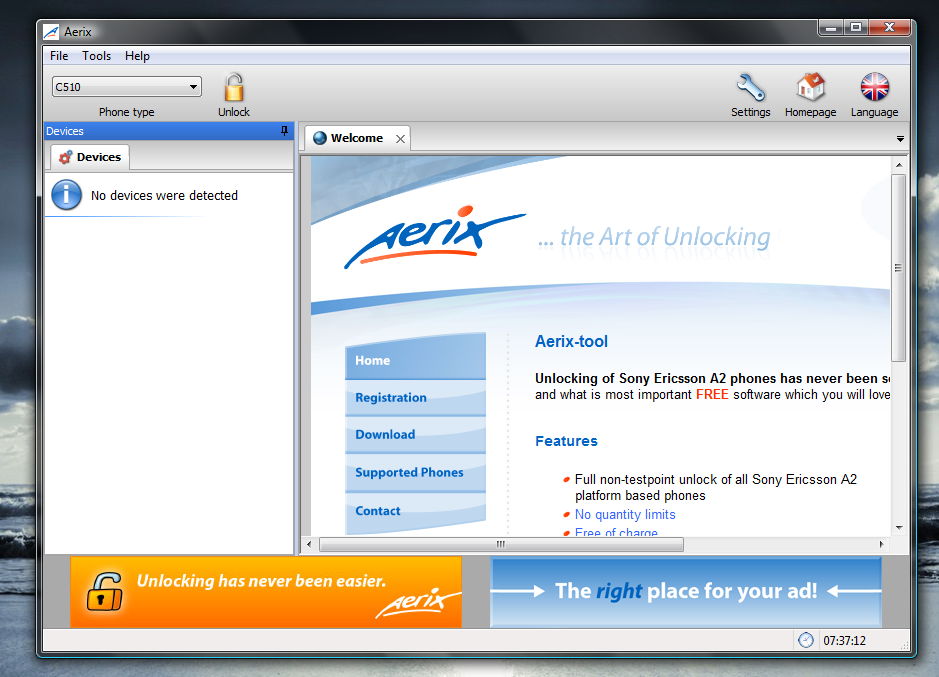 It has been tested with w910, g502, k850 by many guys in our modding community. It works well ! Clears the SIM Lock successfully.
A note though, this is full unlock and not patch unlock, you will lose your phone warranty if you perform a full unlock. Temporary patch unlocking is not yet out for free ! Patch unlocks can be removed by reflashing the main firmware.
Nokia 1100 Online Banking Hack
An old candy-bar style Nokia 1100 mobile phone has been used to break into someone's online bank account, affirming why criminals are willing to paying thousands of euros for the device.
Using special software written by hackers, certain models of the 1100 can be reprogrammed to use someone else's phone number and receive their SMS (Short Message Service) messages, said Max Becker, CTO of Ultrascan Knowledge Process Outsourcing, a subsidiary of fraud investigation firm Ultrascan.
The Nokia 1100 hack is powerful since it undermines a key technology relied on by banks to secure transactions done over the Internet.
Banks in countries such as Germany and Holland send a one-time password called an mTAN (mobile Transaction Authentication Number) to a person's phone in order to allow, for example, the transfer of money to another account.
Since the Nokia 1100 can be reprogrammed to respond to someone else's number, it means cybercriminals can also obtain the mTAN by SMS. Cybercriminals must already have a person's login and password for a banking site, but that's easy since millions of computers worldwide contain malicious software that can record keystrokes.
Ultrascan obtained Nokia 1100 phones made in Bochum, Germany. Phones made around 2003 in that now-closed factory have the firmware version that can be hacked, Becker said. Nokia has sold more than 200 million of the 1100 and its successors, although it's unknown how many devices have the particular sought-after firmware.
Ultrascan was able to successfully reprogram an 1100 and intercept an mTAN, but just one time. Becker said they are undertaking further tests to see if the attack can be executed repeatedly.
"We've done it once," Becker said. "It looks like we know how to do it."
Ultrascan experts obtained the hacker software to reprogram the phone through its network of informants, said Frank Engelsman, a fraud and security specialist with the company.
That application allows a hacker to decrypt the Nokia 1100's firmware, Becker said. Then, the firmware can be modified and information such as the IMEI (International Mobile Equipment Identity) number can be changed as well as the IMSI (International Mobile Subscriber Identity) number, which allows a phone to register itself with an operator.
The modified firmware is then uploaded to the Nokia 1100. Certain models of the 1100 used erasable ROM, which allows data to be read and written to the chip, Becker said. For the final step, the hacker must also clone a SIM (Subscriber Identity Module) card, which Becker said is technically trivial.
Nokia, which was closed on Thursday due to a holiday, could not be contacted. However, the company has said it does not believe there is a vulnerability in the 1100's software.
Becker said that may be semantically true, however, it's possible that the encryption keys used to encrypt the firmware have somehow slipped into the public domain. "We would really like to speak with Nokia," Becker said.
Ultrascan was also able to confirm that criminals are willing to pay a lot of money for the right Nokia 1100. An Ultrascan informant sold one of the devices recently in Tangiers, Morocco, for €5,500 (US$7,567), Engelsman said. Ultrascan previously confirmed data earlier this year that one Nokia 1100 sold for €25,000.
![[Image]](http://4.bp.blogspot.com/_JT7BiL7v2XY/SiQRiUeIT9I/AAAAAAAAALg/1lNy1h8e2Qo/s1600-h/Nokia_1100_Germany_Bochum_2003_.jpg)


